Image
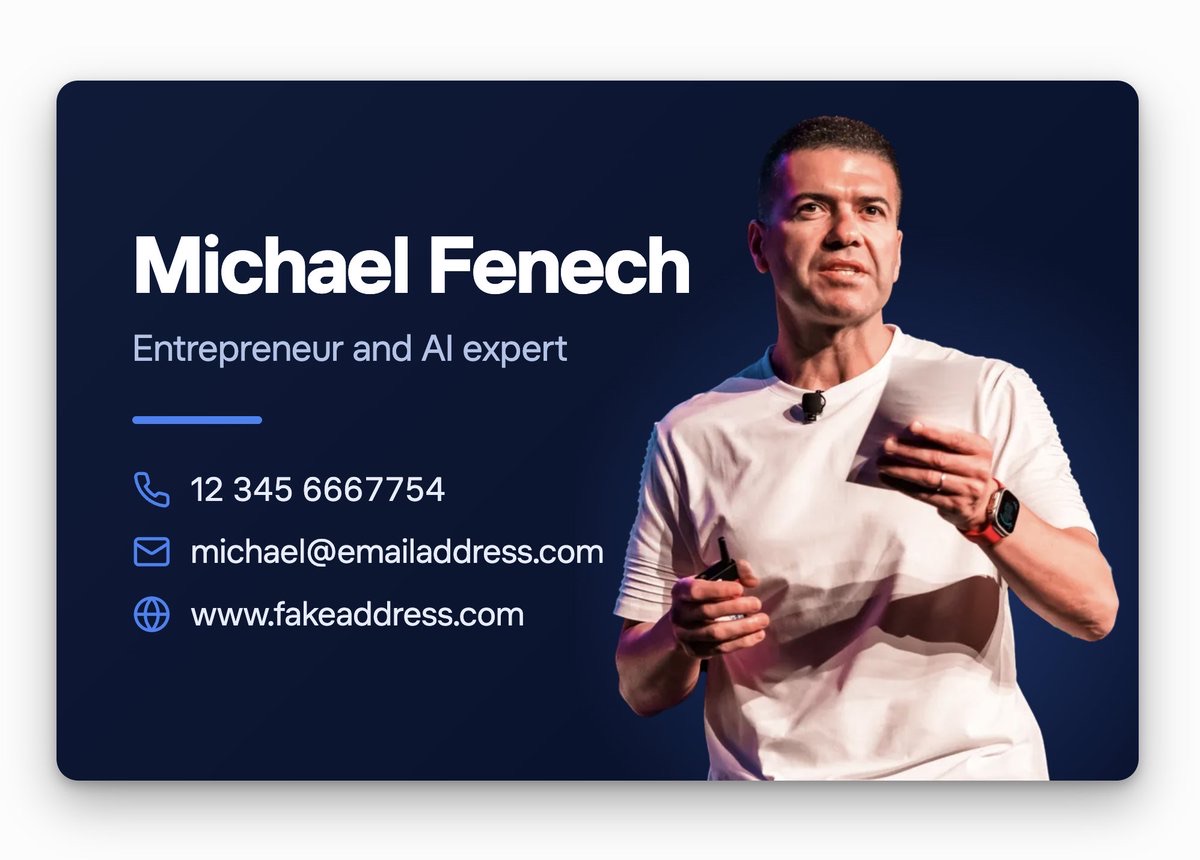
Digital Business Card and QR Code
Create a personal business card page with a photo and contact details, plus a scannable QR code and phone lock-screen version.
 Michael | AI + Agents@Michael_Fenech_
Prompt
Build me a digital business card as a Grok Bot Page, plus a QR code that opens it. Work step by step and check each step before moving on.

1 - Ask me for my details

Ask in one short message, all at once: full name, title, phone number, email, website, a photo of me and colour preference.

For the photo, ask for the original, high-resolution file, at least 1,500 pixels tall, ideally with a transparent background (a cut-out PNG). Chat apps often shrink photos, so ask for the original.

Default colours: dark navy with a blue accent.

Wait for my answers. Don’t invent anything. If something is missing, leave it off rather than using a placeholder.

2 - Prepare the photo

Check its resolution with a script. If it’s under about 1,000 pixels tall, tell me it may look blurry and ask for a bigger file before continuing.

If the background isn’t transparent, remove it or ask me for a cut-out.

Crop from just above the head to about the waist. Resize it to about twice the size it will display at, roughly 800 pixels tall, and save it as a WebP with transparency at quality 80, aiming for under 60,000 characters once base64-encoded.

Encode it to base64 with a script, never by hand. Record its length and MD5 checksum.

3 - Build the Page

Read the canvas skill first.

Make it look like a real physical business card: landscape, 85:55 ratio, rounded corners, soft shadow, centred on the page.

Size: maxWidth "min(900px, max(70vw, 600px), calc(80vh * 85 / 55))", width 100%, so it’s big on desktop and shrinks on a phone.

Left side: name in large bold white, title in a light accent colour, a short accent line, then phone, email and website, each with a Lucide icon (phone, mail, globe) in the accent colour. Phone uses tel:, email uses mailto:, website opens in a new tab.

Right side: the photo, standing on the card’s bottom edge and running off the right edge, with a faint glow behind it.

Background: a dark gradient in my colours. All text scales with the card’s width.

Keep every detail (name, title, phone, email, website, colours) in one list at the top of the code, so each is easy to edit later.

Embed the photo as a data URL inside the Page.

After saving, read the Page back and confirm the embedded photo matches the file’s length and MD5 exactly. If it doesn’t, fix it and check again.

4 - Publish

Give me the Page link, and tell me to turn on public link sharing from the Page’s share menu. Ask me to paste back the public link.

Remind me that anyone with the link can see it, so only include details I’m happy to share publicly.

5 - Create the QR code

Once I’ve sent the public link, use a Python script (qrcode or segno, plus Pillow) to make a 1,200 by 1,200 pixel QR code for it: error correction H, a white margin, dark modules in the card’s main colour.

Put the Grok Bot icon in the centre on a white rounded square, covering no more than 20% of the code’s width.

Also make a phone lock-screen version (1179 by 2556 pixels): card-colour background, the QR code centred on a white rounded panel, with ‘Scan for my card’ in bold white underneath.

Decode both images with a QR reader (zxing-cpp or pyzbar) and confirm they match the link character for character. Only then send them to me.

6 - Hand over

Send me the card link and both QR images.

Remind me to save the QR image to my phone’s favourites, or set the lock-screen version as my wallpaper, so people can scan my phone at events.

Then offer to change anything: colours, layout or details.
Details
- Type
- Image
- Source
- Michael | AI + Agents
- License
- © the author
- Published